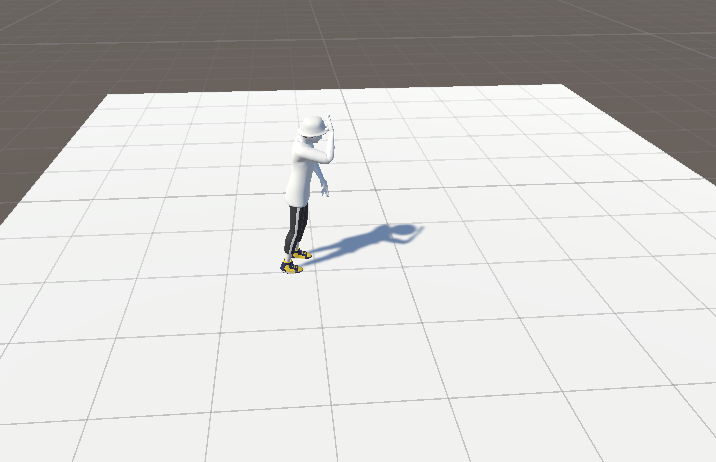
The Unity Motion Data application process
Unity
Unity is a cross-platform game engine for developing 2D and 3D games and interactive content.
It provides tools to help game developers easily create games and simulations that run on a variety of platforms (PC, mobile, console, VR/AR, etc.).
How to install and run Unity
1. Enter the Unity Hub homepage. link to the homepage : https://unity.com/download
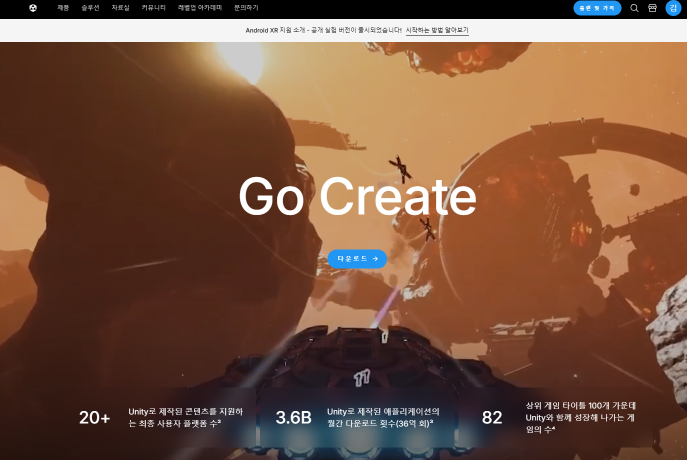
2. Download and install Unity Hub.
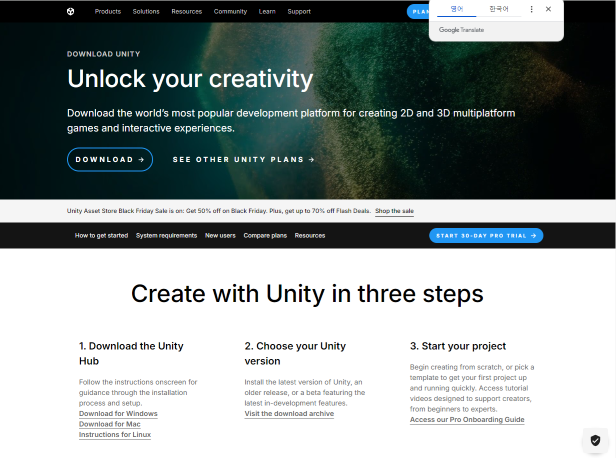
3. Install the required version.
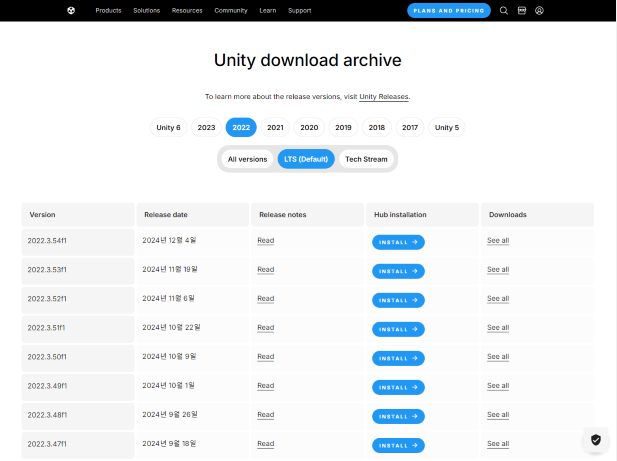
4. After installation, click New project in the upper right corner to open the project creation window.
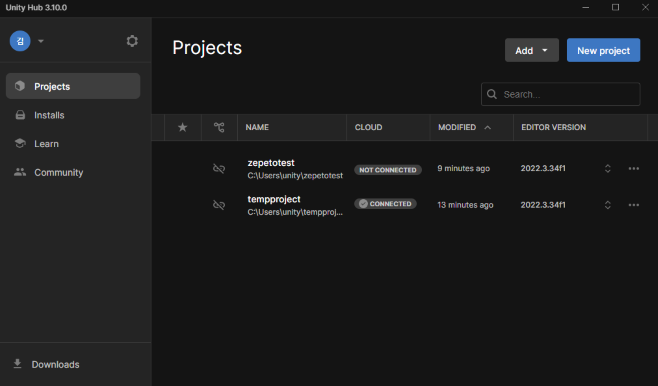
5. At the top, under New project, set Editor Version to the version you want.
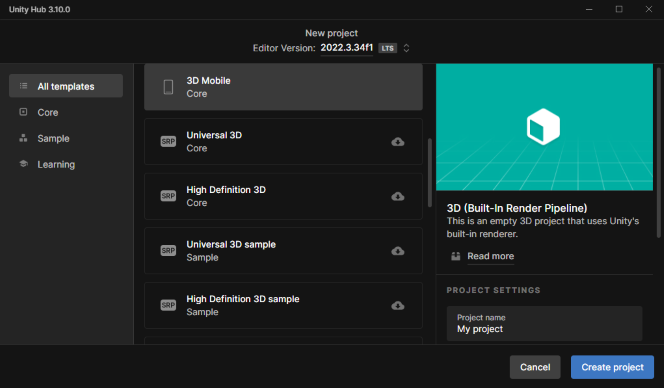
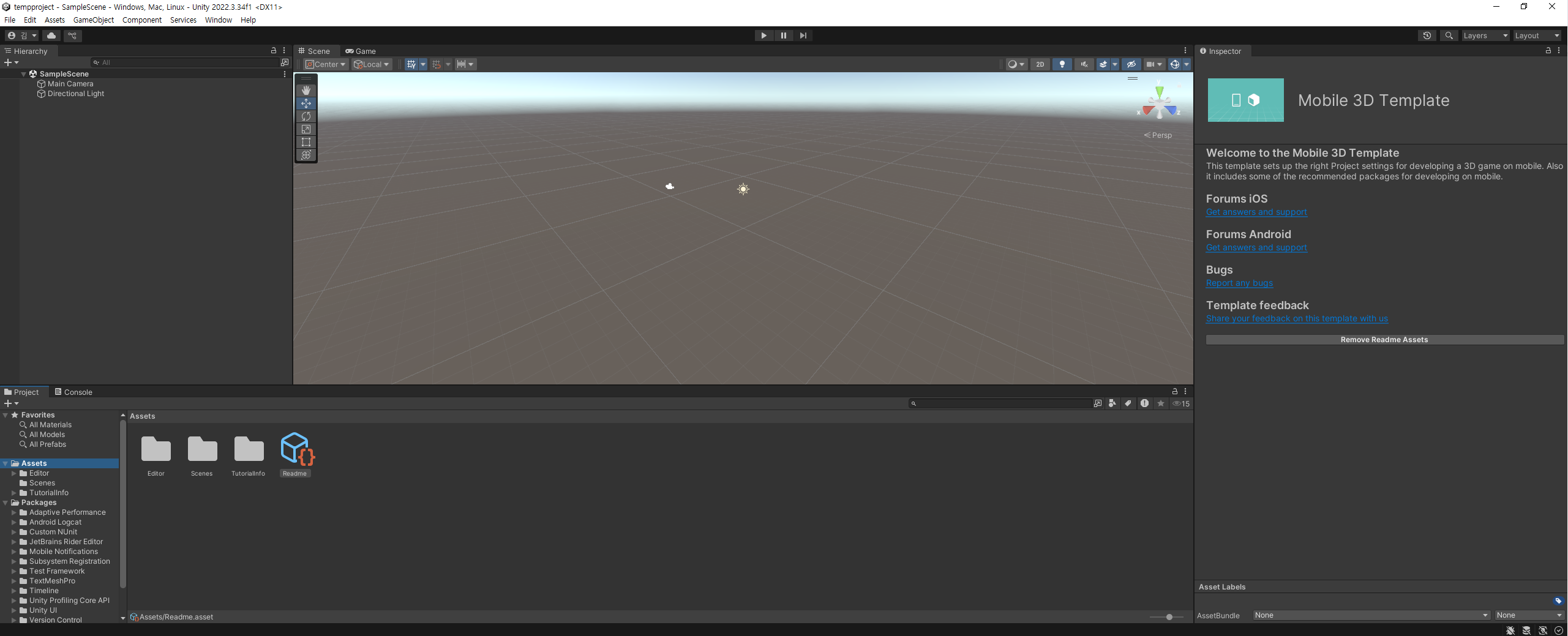
6. Select the template you need, set a project name, and press the Create projcet button to launch Unity.
Common errors and solutions during installation
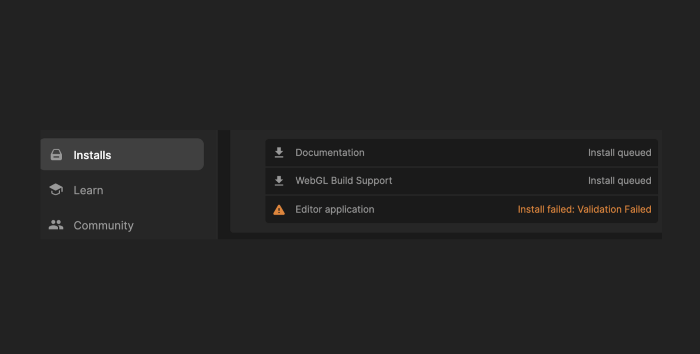
When you encounter a Unity version installation error (Install Failed: Validation Failed error), go through the following process
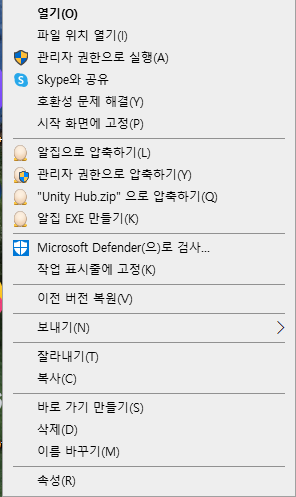
1. Run Unity Hub again as an administrator.
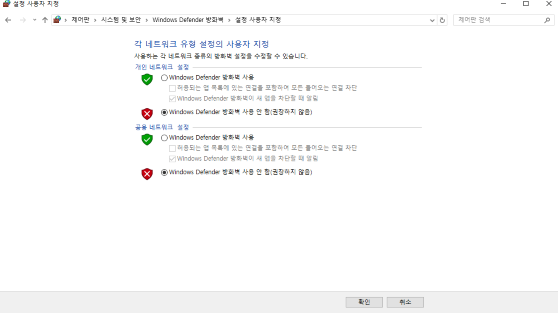
2. shut down your antivirus program and disable your firewall (set your firewall back up after installation)
3. Install the version manually.
- Enter the Unity version download archive homepage. link to the homepage : https://unity.com/releases/editor/archive
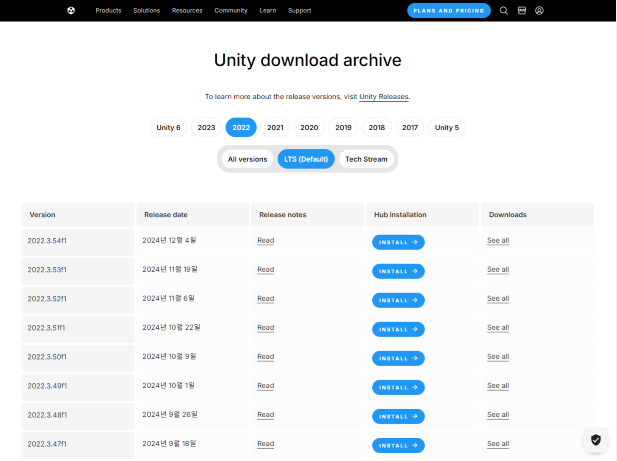
- Find and click the See all button in Downloads for the version you want to use.

- Click the Manual installs tab on the left, find the modules you need, and download them manually.
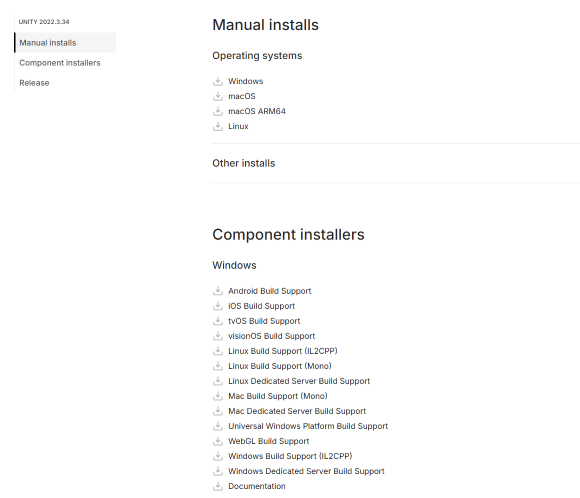
- Run the manual program you downloaded.
4. Add or change the administrator account.
- Press the Windows key + R to launch the Run window.
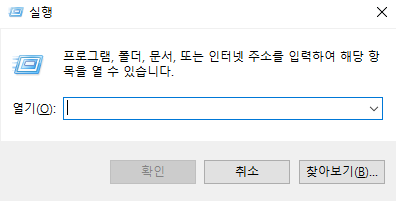
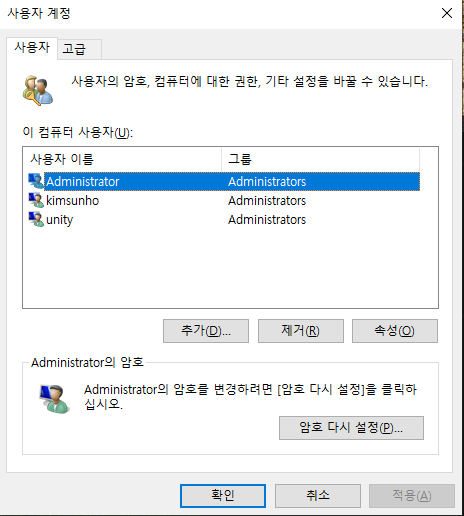
- In Open, search for netplwiz.exe to bring up the user account.
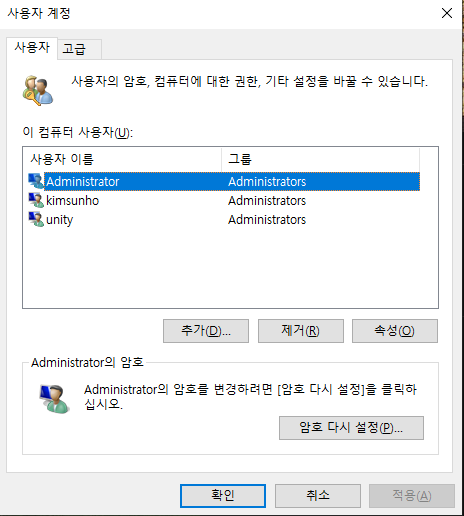
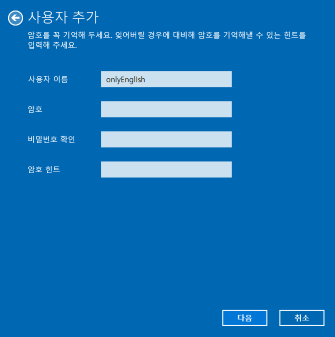
- Under User accounts, tap the Add button, and then tap the Sign in without a Microsoft account button to enter the Add user screen.
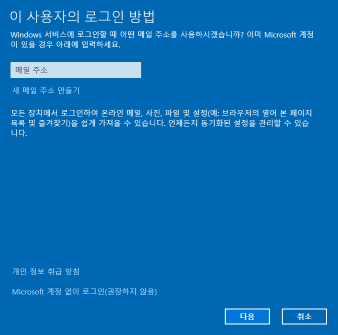
- Make sure to enter your username in English and press Next.
- Under User accounts, select the account you created and tap Properties.
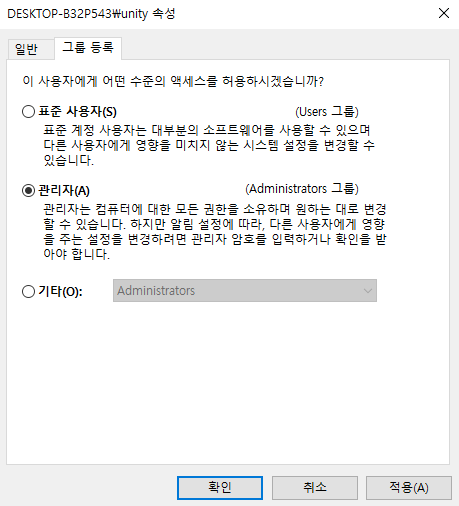
- Click the Group Enrollment tab, change to the administrators group, and hit Apply and OK.
How to Import Motion Data
Drag And Drop Method
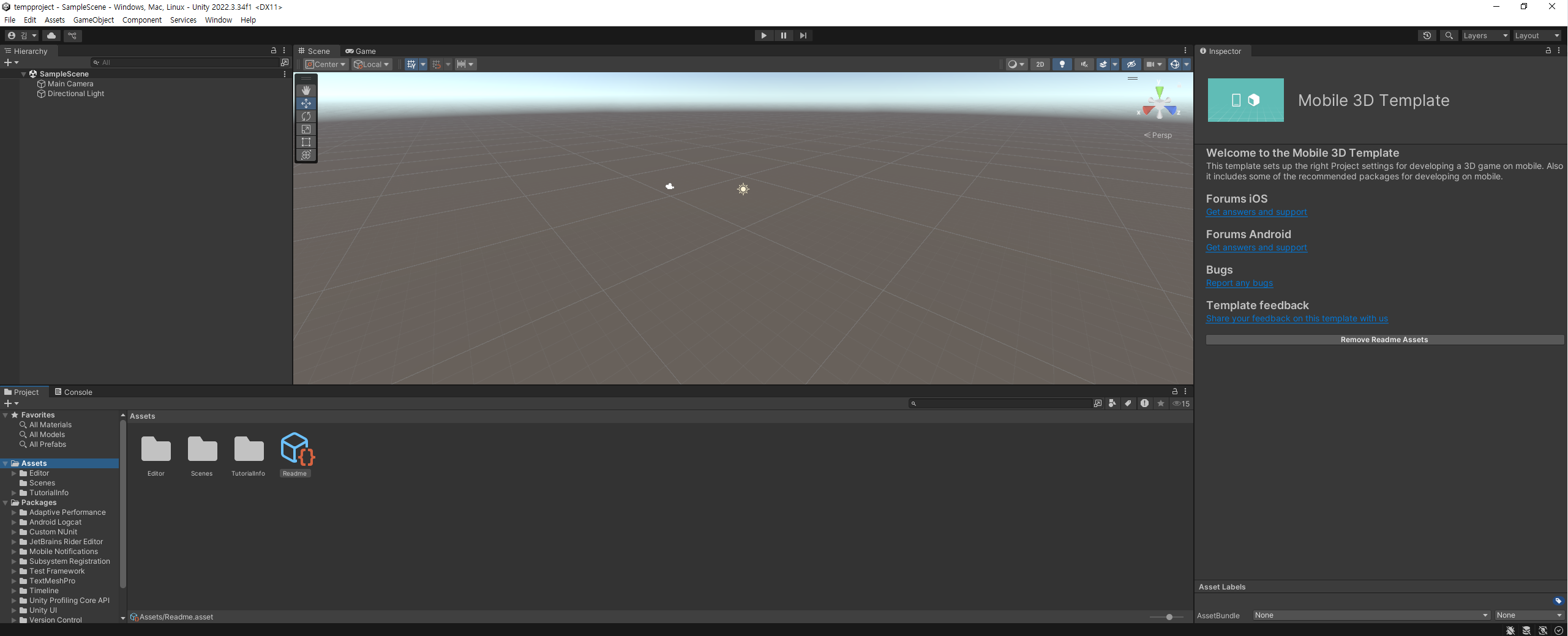
To import FBX files, drag and drop them into the Asset folder in the Unity project window using the mouse.
How to use Import New Asset
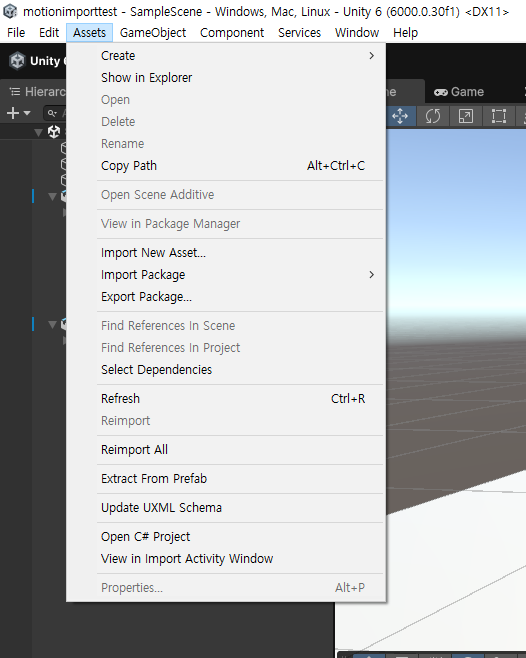
1. Tap the Assets tab at the top of Unity and click Import New Asset.
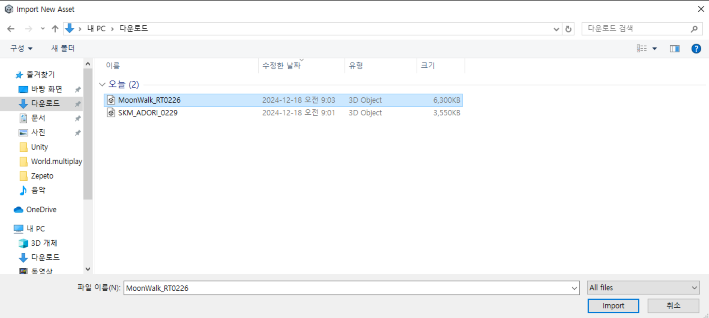
2. Select the FBX file you want to import and click the import button.
How to apply animations
1. Import the character and the animation you want to apply.
2. Select the imported FBX file and check the Inspector window.
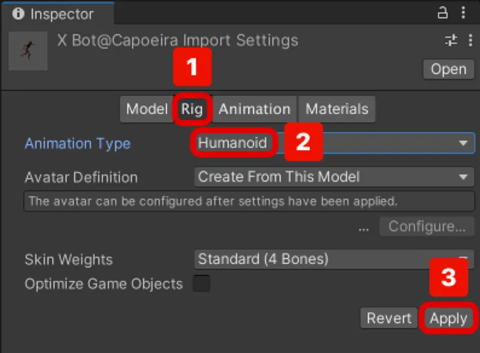
3. Select the Rig tab in the Inspector window and change the Animation Type to Humanoid and click the Apply button.
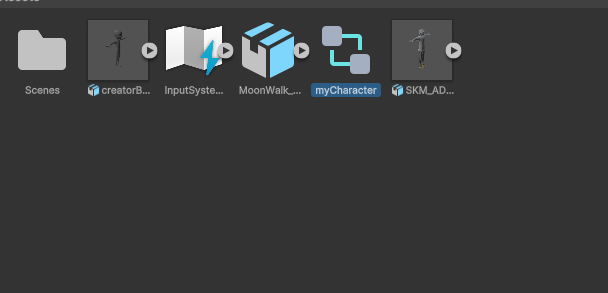
4. Right-click in the project window and select Create > Animation > Create AnimatorController and rename it to whatever you want.
5. Click on the character in the Scene and drag the AnimatorController you created into Animator > Controller in the Inspector window.
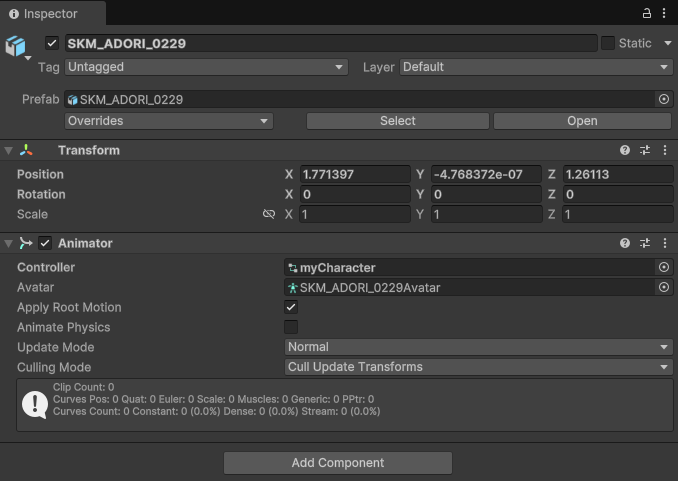
6. Double-click the AnimatorController to open the Animator window.
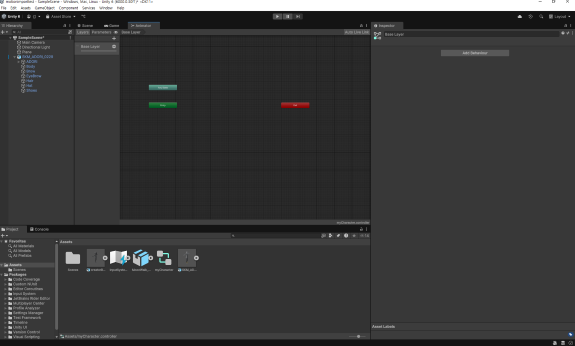
7. In the project window, drag the animation FBX file you want to apply into the Animator to create an Animation State.
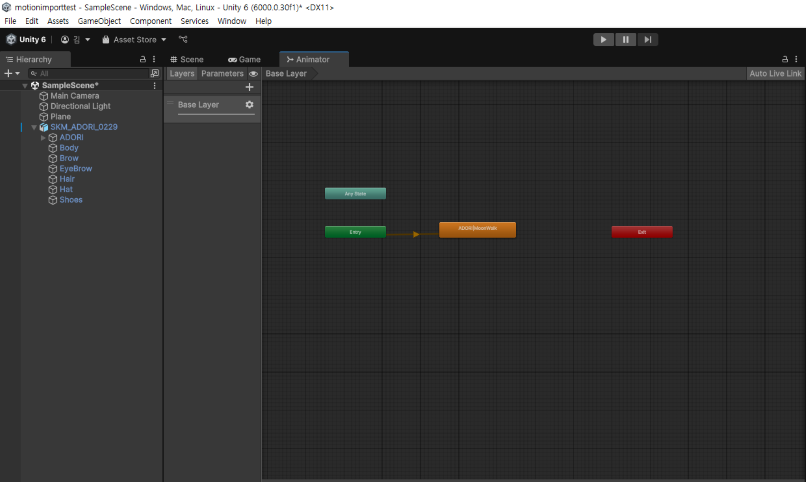
8. right-click Any State and click Make Transition (if you want to make the conditions different, MakeTransition on the State with the right conditions)
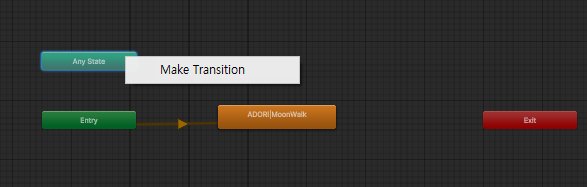
9. Click on the animation you want to apply.
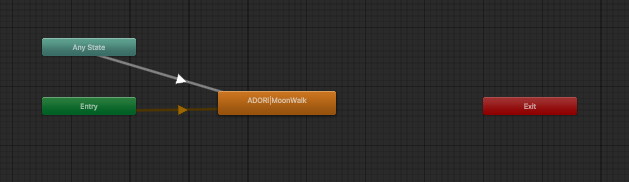
10. Press the Start button to confirm that the animation is working.